Latest: Add Latest Article Here | Recommended: Add Recommended Article Here
Subscribe For Free Latest Updates!

We'll not spam mate! We promise.

Showing posts with label Computer/PC. Show all posts

Wednesday, November 18, 2015


The new 'Find My Device' feature in Windows 10 will help users recover their stolen or lost laptop by tracing its last location. This feature works in lieu with the 'Find My Phone' in Windows Phone but doesn't come with the option to remotely wipe the data.


The Windows 10 Threshold 2 update has fixed many niggling issues and has also optimized the operating system to work faster on machines with lower spec hardware. The boot time has also improved considerably, and along with all these, the Fall Update 1511 also ushers a new feature called “Find my Device”.


The new feature might sound familiar as it was incorporated in Windows Phone 8.1, but this time around Microsoft has brought it for the Windows 10 PC build. Phone tracking has gotten popular in recent times, but not laptop tracking. Since we usually carry our PC with us while travelling, it is but obvious that the chances of the laptop being stolen or lost will exist. The Find My Device feature is introduced to solve the problem by telling you the last location where the laptop was used.

We will walk you through a set of instructions to switch on the device finder feature and also set it up appropriately. The Find my Device will not be enabled by default and in order to enable it all you need to do is navigate to Settings>Update & Security>Find My Device.

This feature has been implemented only in the latest Windows 10 1511 update and will not be available if you’re still with the previous versions. This feature makes use of signal flares and redirect you to the last known location of the laptop, provided that the person in procession of the same connects to the Internet.

Toggle on the Find My device and switch it on, to find your lost device all you need to do is go to this link and login with your Microsoft account which is linked in with the device. Unlike the “Find My Phone” feature on the Windows 10, users won’t be able to wipe their data remotely. That being said, we also need to understand that by using this feature we are inadvertently giving Microsoft the permission to save our location history at regular intervals of time. But that’s a decent compromise we believe.


Like us on Facebook and subscribe with your email to receive all our latest updates via your inbox! -TechPP
Read More >>

Tuesday, November 17, 2015


31 Basic Application Software You Ought To Have On Your PC  (SupremeWap.Com)


Although, different people working in different fields, will need different set of software for their daily operations, there are however, some few basic applications that everyone should have installed on their computers. But, before we begin, let me talk a little on, the types of computer software we have today.

Types of Computer Software:

There are basically, two types of software on computer systems;

System software: This is the most important software on your computer (laptop or desktop) because, they manage/run your computer’s memory, processes, and all other software and hardware. Hence, they come pre-installed on your machine, by the manufacturer of your device. An example of System software is, Operating system (OS). Examples of operating systems are; Windows OS (by Microsoft), Macintosh OS (by Apple inc.), and Linux OS.

Application Software: These are programs or software designed to perform a group of coordinated functions, tasks, or activities for the benefit of the user. They are mostly 3rd party apps, and virtually anyone with a coding ability, can create one (at least, my younger brother does). Some examples of application software are; Spreadsheets, web browsers, photo editors, etc.
New computers normally come with crapware. Crapware are application softwares pre-installed on your machine by the manufacturers, and may or may not be of any use to you. However, to fully enjoy your device, there are some important applications you simply can’t do without. I will be talking on 31 of such.

Note: Some software companies are converting their software into online tools. This is because, unlike offline apps, software hosted online are always (automatically) updated in real-time.
For this reason, some of the applications listed in this post, may not necessarily be downloadable.

1. Web Browser(s):
These are applications that allow users to surf the web (internet). Though Windows laptops come pre-installed with ‘Internet Explorer (IE)’, I would recommend you installing ‘Google Chrome’ and/or ‘Mozilla Firefox’.
This is because, Internet Explorer is quite porous. Spyware, junkware and malicious programs normally infiltrate IE. Chrome and Mozilla Firefox however, were built with the security of the user in mind. They will block any suspicious website or app from installing unsolicited and injurious programs. This is not to say that, Chrome or Firefox are 100% free from attack though.
Another advantage of Chrome and Firefox over Internet Explorer is, the sea of add-ons and plugins available for them. These tools will make your browsing experience sweet and less stressful.

2. Word Processors:
Examples of word processors are; Microsoft Office Word and OpenOffice.
In the past, Windows laptops always came pre-installed with MS word and the other Microsoft Packages. However, I noticed that these days, newer laptop models only come with trial versions of the new Microsoft Office 365. To use it fully, one is expected to pay.
In that case, if you are unable to purchase the new Microsoft Office Word 365 (via internet purchase), you could always collect the raw file of Microsoft word 2007, 2010 or 2013 from a friend, or buy the physical program disc to install.
Once you install it, every other Microsoft Office Product (Microsoft Power Point, Microsoft Excel, Microsoft Outlook, OneNote) should also be installed (if you select/tick them during installation.)

3. Anti-Virus:
Anti-virus programs are designed to, detect and destroy computer viruses.
Examples of anti-virus programs are; McAfee anti-virus (usually pre-installed). However, I would recommend, Avast, AVG, Avira or Norton AV. You usually get a trial version for 30 days. After that period, you could either, buy the Premium version or, get a cracked version.
Feel free to suggest some other anti-virus programs that you use (in the comment section).

4. Registry CleanUp Tune-Up Utilities | System Diagnostics Tool:
The computer registry is the central database that contains all of the necessary information about your software, hardware, preferences, OS, and more.
Cleaning your System’s registry, is an important part of overall PC maintenance. TuneUp utilities, help to manage, maintain, optimize, configure and troubleshoot a computer system.
‘CCleaner’ and ‘Comodo System Utilities’, are examples of Registry Clean-up programs.

5. Video Player:
One of the main activities for which most people use their computers to do is, watch videos. You need a Video player that will give you optimal picture and audio quality.
VLC is the most popular video player. Other good video players are, KMPlayer, GOM Media Player, DivX Player and RealPlayer.

6. Music Player:
If you are like me, you cannot go a single day without playing some music from your device. Even though video players can also play audio files, it is advisable to install a dedicated music player, to fully understand the meaning of, “music is the food of the soul”!
My recommendations are; MusicBee, Winamp, MediaMonkey and Foobar2000.

7. Flash Player:
Flash players are web browser plugins that can also be supported on some mobile devices (especially smartphones). Without flash players, you cannot view multimedia, execute rich internet applications or stream video/audio. Adobe flash player is the major flash player available today. Go ahead and suggest other ones you may know of.

8. Photo Editor:
A time will come, when you will need a Photo editor. Whether to do simple things like, add text to an image, crop an image, or complex things like, adding yourself to a 1960s photo (as if you were really there), photo editors are very important tools to have around.
Examples of photo editors are; GNU, GIMP, PhotoCut, Super Refocus, and Adobe Photoshop. Of all these photo editors, Adobe Photoshop is the best! But unfortunately, it is also the hardest to master.

9. Computer-Aided Graphics Design Software:
You don’t have to be a seasoned Graphics designer to have these design tools on your device. Within 2 days of using a graphics design software, I designed a logo/header image for my blog: NOSR Blog, with no prior training.
Some example of graphics design tools are; Microsoft paint, So Think Logo Maker Pro, Corel Draw, Autodesk inventor, Auto-CAD, Adobe Illustrator. Microsoft paint is a bitmap based software, but it is easy to use. Though an underrated piece of software, MS paint can be used to create some unbelievable work.

10. DJ Music Mixing Software:
This is a really fun application to have. Once in a while, you may just be in the mood of adding cool DJ-type effects to the music you are playing. You could also surprise everyone with your scratching skills, at that birthday party.
Examples of such software are; Virtual DJ, Mixxx, Serato DJ, Ableton Live and, Traktor Pro.

11. Ebook Reader:
Electronic book readers (ebooks readers) are software that make it possible to read digital books. A good ebook reader should be able to open multiple formats like; pdf, ePub, Mobi, XPS, DjVu, CHM, Comic Book (CBZ and CBR), etc.
Examples of e-book readers are; Foxit Reader, Adobe Reader, Sumatra PDF reader, and Calibre.

12. Video Chatting Software (Skype):
Web-cam enabled laptop users can get more value from their machine. Skype is the major video chat software I know of.

13. Note-Taking Software (Keynote):
Whenever the light-bulb goes off in your head, you may want to quickly take down your thoughts else, your short-term memory brain-cells will betray you.
Examples of note-taking tools are; Evernote, Resophnotes, Elements, Simplenote (iOS) and KeyNote.

14. Downloaders:
If you are a surfer of the net, you simply cannot do without fast downloaders. They help us download/save our favorite apps, large images, music and videos onto our computer. Here are the best downloading software; IDM, Torrent, Orbit downloader, SaveFrom.Net, NetVideoHunter (Firefox add-on), Total Video Downloader (for Mac), XDM (Xtreme Download Manager).

15. File Converter:
Some applications may only require/recognize certain File formats. Therefore, you will need a file converter to convert any of these file formats whichever way you want.
Known file formats are; png, jpg, jpeg, tiff, gif, bmp, emf, doc, docx, xls, rtf and ppt.
Some file converters can batch-convert a file format into multiple other formats (simultaneously). Online file converters are more popular. Try, http://convertonlinefree.com

16. File Compressor/Decompressor:
Some large files will need to be compressed, in order to send or upload them. In the same vein, the receiver or downloader of the compressed file will have to decompress the archive file.
These are very good file compressers/decompressers; 7-Zip, WinZip, Peazip, and, Zipeg.

17. Gaming Software:
I don’t have much to say about this as I am not a game freak. However, here are some games I plan on having in the not so distant future; Call of Duty, God of War, GTA 5.0, and Minecraft.
Note: Not every computer has the power to execute most modern games. Your system specs and graphics card must be up to par.

18. Spreadsheet:
Spreadsheets are very important to teachers, bankers, sales people and businesses in general. Examples of spreadsheet programs are; Microsoft Excel, Google Spreadsheets (hosted online), Open Office, and Apple Numbers.

19. Audio Editor (Audacity):
Audacity is the world’s most popular free open source digital audio editor. It is the easiest audio editor to use. Audio editors are used for; recording audio on computers (via a headset or professional microphone), editing audio clips, and adding effects to audio clips etc.

20. YouTube to MP3 Converter:
These software convert video or other audio formats, to mp3. Its a great way to create podcasts or have your favorite music in mp3 format. Good converters are; ChangeToMp3, Total Video Converter Lite (for Mac users), VLC (bet you didn’t know that).

21. Google Drive:
This Software will help you send large files via email (gmail). Gmail only permits 25MB as the limit of the total file size(s) that can be attached, per mail. Say you want to send a movie to a friend, and the size is 50MB or even 800MB, the only way to send such heavy files, is with the help of Google Drive. Download your own Google drive today.

22. Cloud Storage:
Cloud storage is a type of storage of data wherein, data is stored in and accessible from multiple distributed and connected resources that comprise a cloud.
Cloud storage is important for data back-up, archiving and disaster recovery. You can save the entire content of your computer in the “clouds”, then access them from any location in the world (without carrying around your storage devices)! The best cloud storage providers are; Microsoft Cloud, JustCloud, BackBlaze, CrashPlan, Carbonite, iDrive, DropBox, OneDrive, etc.

23. VPN Software:
When using a public Wi-Fi Network, your accounts are at risk! You are advised to get a dedicated IP address (cloaker). It is legal, and a security measure observed by the world’s top companies.

24. Last.fm:
Social networking hits music with Lastfm. It enables you to listen to music, get recommendations, and stream radio tailored to your taste.

25. Video Editor:
Good video editors are; Windows Movie Maker, Adobe Premier Pro, LightWorks, Blender, Final Cut Pro, OpenShot, Sony Vegas, etc.

26. Spyware / Adware Removal Software:
If you are seeing random pop-up ads and redirects within your browser, your security is down! Some malicious add-ons or plugins accompany downloads from questionable sites. Again, Internet Explorer is more susceptible to such attacks. Here are the steps to follow, to rid your browsers, of Junkware/Malware.

27. eBook Creator:
Good ebook creators are; MS word (2010 and 2013), Scrivener, Canva, Creatavist, eBook Maestro Pro, Evernote, PagePlus, Vook, Calibre, Ommwriter, and Blurb.

28. ScreenCast Software:
Screencast-O-matic, Camtasia, Ezvid, CamStudio, Snaps Pro, ScreenFlow, Final Cut Pro, QuickTimeX, Jing, Screenr, etc.

29. Google Earth:
Google earth is a virtual globe, map and geographical information program. It is one fun and must-have piece of miracle. Imagine a program that displays satellite images of varying resolution of the earth’s surface, allowing users to see things like cities and houses (at a”bird’s eye view ” angle)!
You can use this program to get directions; using variables such as, street names, cities and establishment. You can also use google earth to view areas subjected to widespread disasters and, even explore and place location bookmarks on the Moon and Mars.

30. Scientific Calculator:
I use calculator application on my Laptop to calculate my age (I’m that dull). I also use them to calculate complex logarithmic functions and integrations. Examples of such programs are;
Microsoft calculator plus, Microsoft Mathematics, and HEXelon MAX. There’s probably hundreds more! Explore your device’s App stores.

31. Desktop Widgets:
Your desktop should hold the most functional widgets like; Clock and Calender. Also, it would be beautiful to have your Screensaver rotate multiple images in slideshow fashion.

Be sure to use the comment section to suggest other basic computer software I may have missed out. Also, play with the share buttons below.

This post was written by Erena.I am a student by day and webmaster by night.Technology fascinates me.
Read More >>

Sunday, November 8, 2015


How To Fix 'USB Device Not Recognized' Error On Windows PC (SupremeWap.Com)

Many times you notice the error 'USB Device not recognized' while working on windows. The problem can come by different reasons and when this error occurred you will not be able to use the drive in your computer as it is not explore-able when this error is generated in windows. And this error is mainly driver error that generally occur due to malfunctioning or corrupting of USB drivers in PC. But you don’t exactly know which driver needs to be changed.

How To Solve USB Device Not Recognized Error In Windows

The method is very simple and you will be updating the driver that is corrupted at that time and with that the issue will get resolve and you can easily access the USB device in your computer. Just follow up the below steps to proceed.

Steps To Solve USB Device Not Recognized Error:

  1. Open RUN (Windows Logo + R) and then type “devmgmt.msc” there and click ok.USB Driver11_Techviral
  2. Double click on Universal Serial Bus controllers to expand it.
  3. Insert Your USB pendrive in it and all the driver list will get refreshed.USB Driver_Techviral
  4. You will see error sign on the Serial Bus Controller which creating this error.
  5. Simply right click on it and then uninstall it, after that reinstall it and you can also update other drivers too that not working properly in your device.USB Driver1_Techviral
  6. Now restart your computer and then after it insert the USB driver in any com port and you will not receiving this error message this time.


Like us on Facebook and subscribe with your email to receive all our latest updates via your inbox!
Read More >>

Monday, November 2, 2015


New Release! Linux Kernel 4.3, Most Advanced Stable Version - Download Now (SupremeWap.Com)

The founder and the software engineer of Linux Kernel Operating System have just announced the release of Linux Kernel 4.3, now the OS has been released for open source download, and nearly this release doesn’t mean that another Linux will not come, the next process will be for Linux 4.4.

Read Also: New Release! Ubuntu 15.10 With Kernel 4.2 And Improved Unity, Download Now
 

New Release! Linux Kernel 4.3, Most Advanced Stable Version - Download Now

 This new Linux Kernel 4.3 is officially out for the fans, after several test they said that there is no major fault came in the Operating System. Usually, this news development of version came after known programmed procedure, many improvement and changes have taken place in this 4.3 version, users of Linux Kernel can update their system to 4.3 rather than downloading the fresh one and they may lose installed files and programs.

However, as we said that this new 4.3 Linux Kernel version may be for short term, the developers have announced about this strategy, that they will release Linux Kernel 4.4 which would be the LTS release, the new types of release version having LTS which never done before. LTS defines “Long Terms Support”, users are being told that they should update every version as a new version of each Linux come, even 4.3, later on with the new policy of Linux, soon it might provide full native support to its users but only after the release of 4.4 Linux Kernel version. Linus Torvalds wrote in a blog post, “We had a system redesign and a late alter for an x86 vm86 mode bug presented by the vm86 cleanups, however, other than that it’s only a gathering of different little oneliners everywhere. Alright, the vm86 mode thing was a joke as well, it was just marginally more nerve-wracking in light of the fact that it looked scarier than it was before individuals (Andy) made sense of what was going on. The progressions from rc7 are commanded by the system stuff, yet as should be obvious from the annexed short log it’s not anything especially startling.”
 As per the source, officials said that this version of Linux Kernel is not for long term, soon after within one year another version may release as 4.4, but users are instead to install the update of 4.3 for security concern. Many changes have been optimized within the Operating System to prevent security vulnerability, usually Linux users are even programmers or developers they know about the world hacking terms, so to take in the mind the creator and developers of Linux made this Operating System more secure than all of the previous series.


 Now after all the detail discussion over Linux Kernel 4.3 and upcoming Linux Kernel 4.4 LTS as Long Term Support.


Like us on Facebook and subscribe with your email to receive all our latest updates via your inbox!
Read More >>

Monday, October 26, 2015


Best iOS Emulators To Run iOS Apps On PC (SupremeWap.Com)

Just like android where there are a lots of emulators that allow android apps to work on PC. Similarly there are iOS emulators also available that will allow you to use your iOS apps your PC for FREE. These emulators are just platforms to run iOS supported apps on your Windows PC.

3 Best iOS Emulators To Run iOS Apps On PC

We have selected 3 best emulators that are faster and efficient to run your iOS apps with great ease as and speed on your PC.

#1 iPadian Emulator

This is one the best emulator for your PC that allows you to run iOS apps on your PC with great processing speed. Also this is well known to lots of users that have positive user ratings and also good download rates.

 iPadian Emulator (SupremeWap.Com)

#2 Air iPhone Emulator

This is another one of my favorite emulator, because of its simplicity and user friendly interface. This is an Adobe AIR application that reproduces the iPhone’s GUI on your PC. You just need the AIR framework for this application to work. AIR iPhone’s sole purpose is to replicate the graphical user interface of the mobile phone.

Air iPhone Emulator (SupremeWap.Com)

#3 MobiOne Studio

This tool is based on cross platform idea to run iOS apps on windows PC. MobiOne Studio is a Windows-based tool for creating cross-platform mobile apps for the iOS and Android platforms.
MobiOne cross platform apps are built on the popular HTML5 hybrid-native app model using the open-source Cordova/PhoneGap framework.

MobiOne Studio (SupremeWap.Com)


Like us on Facebook and subscribe with your email to receive all our latest updates via your inbox!
Read More >>

Friday, October 23, 2015


5 Best Free VPN For Security And Accessing Blocked Sites On Windows (SupremeWap.Com)


VPN(Virtual Private Network) is one of the best tools for your computer security. When you are connected to any public WiFi network or any type of internet connection, you are not secure because any one can track your activity over that network. VPN is very useful because they encrypt your incoming and outgoing traffic that prevents your ISP or Hackers from spying on any activities that you are performing on that network. So here we provide you with the 5 Best Free VPN For Security And Accessing Blocked Sites On Your PC.

Read also: 5 best android VPN to access blocked websites and downloads on WiFi

Top 5 Best Free VPN For Windows PC

Here we have selected some of the best free VPN that are going to give you secured browsing on the internet and also with the help of these VPN you can even access blocked websites, downloads and all other services that are blocked on your server.

5 Best Free VPN For Security And Accessing Blocked Sites On Windows:

#1 CyberGhost VPN

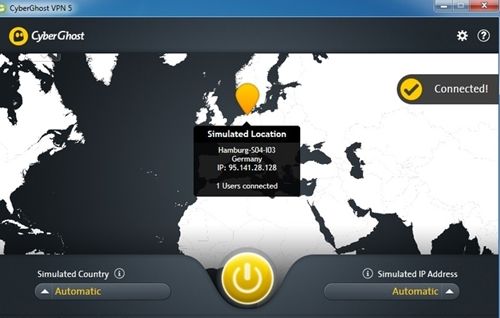
This is one of the best VPN that I ever tried on PC. Also you can see the positive rating of this tool. And using this you can access websites securely over the internet in your windows PC. Also its the best browser to surf anonymously over the web as it hides your main server identity.cyberghost vpn (SupremeWap.Com)

#2 Hotspot Shield Elite

You might be familiar with this VPN as this service is also available on android for free and on chrome as plugins. This is also a nice VPN that allow you to browse securely, you can also access any social networking and other sites that are blocked on your WiFi network.Hotspot Shield Elite (SupremeWap.Com)

#3 PD Proxy

Features of this awesome VPN are;
  • PD Proxy remove unblock content that is basically blocked by your ISP.
  • If you want free internet , Use PD-Proxy Software.
  • Secure your Internet or WiFi Connection , so no one can track you like ISP or hackers.
  • No one will know your real IP address , that is no one know your identity on internet.PD proxy (Supremewap.Com)

#4 TorVPN

This is one of the Affordable anonymous VPN proxy service provider helping you unblock content over the network.This VPN provides High speed, super fast encrypted connection on your Windows PC.TorVPN (SupremeWap.Com)

#5 OkayfreedomVPN

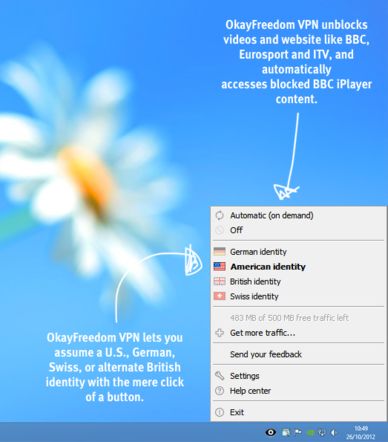
This is one the best free VPN that helps to access the websites securely in your windows PC, this VPN gives you the complete private network on your PC.OkayFreedom VPN (SupremeWap.Com)


Like us on Facebook and subscribe with your email to receive all our latest updates via your inbox!
Read More >>

Friday, October 16, 2015


In Recent Years, BitTorrent and uTorrent monetize their program for earning money. But we don’t like ads in these window program. Many times ads are very aggressive, violent and sometimes adults.

How To Remove Ads In uTorrent And BitTorrent (SupremeWap.Com)

How To Remove Ads In uTorrent And BitTorrent


We are going to show you how you can remove ads in torrent softwares. You can remove ads in uTorrent or BitTorrent in just two minutes with these 4 steps.

Steps To Remove Ads In uTorrent And BitTorrent


#1 Open the Torrent program (Utorrent or BitTorrent)on your PC. Here I will be using uTorrent program.
Click on Options and select Preferences Settings.

#2 You will see a new Dialog Box, Select Advanced option settings.
How To Remove Ads In uTorrent And BitTorrent-2 (SupremeWap.Com)

#3 In filter box, type below codes and mark those post as false.


• gui.show_plus_upsell
• sponsored_torrent_offer_enabled
• bt.enable_pulse
• gui.show_notorrents_node
• offers.content_offer_autoexec


#4 Again make sure you mark all the 5 posts as false. If you follow the above steps correctly, restart your software and see the changes.

Now you can run your torrent client software without ads.


Subscribe to our blog below to receive our latest updates via your email and also like http://facebook.com/SupremeWap
Read More >>

Tuesday, October 13, 2015


How To Increase IDM Speed On Your PC (SupremeWap.Com)

Internet Download Manager being one of the best downloader that helps you to boost up your downloading speed in your PC. Also the best part of IDM is its best resume download capability. And we have provided you with some methods that will help you to boost the download speed of Internet Download manager up to double of its original speed.

How To Increase IDM Speed On Your PC


We will be discussing some methods that will help you to boost up your IDM download speed which is based on some of settings that you will change and the downloading speed will get boosted up to double.


#1 Method: Changing Some Settings In Your IDM

Just alter some settings in your IDM discussed here and see the change in download speed.

1. Launch your Internet Download Manager and click on "Downloads" and then make the "Speed Limiter" off.
How To Increase IDM Speed On Your PC-1 (SupremeWap.Com)

2. Click on Downloads again and in Speed Limiter click on "Settings".

3. Set the speed with little less than your connection speed. It is better to set it from 1000 KB to 10000 KB and click OK.

4. Again click on "downloads" button and choose "options".
How To Increase IDM Speed On Your PC-3 (SupremeWap.Com)

5. Under the "Connection" tab select the best Connection type/speed.
How To Increase IDM Speed On Your PC-4 (SupremeWap.Com)

6. Click OK button to save up all the changes.

7. Now you are done, your download speed will get increase than before.


#2 Method: Using IDM Optimizer Tool
Use the tool discuss in this method to boost up your internet download manager speed.


1. Download and install IDM Optimizer Tool on your PC.

2. Make sure IDM is installed on your PC, as this tool will only optimize IDM if its physically present on your system.

3. Launch your IDM Optimizer and then you will see window as shown below just click on "Maximize Now' and you will get a note asking you to restart your IDM do that and once restart your PC.
How To Increase IDM Speed On Your PC-5 (SupremeWap.Com)

4. That’s it now your IDM is boosted with speed, try to download any file and check out the download speeds if good or not.

5. If you want to restore your default settings then you can click on "Restore Default".


http://facebook.com/SupremeWap
Read More >>


Automatically Adjust PC Screen Brightness According To Time And Location (SupremeWap.Com)

Many of you work on desktop or laptop at night and the screen light may harm your eyes a lots as radiation coming from these screens can cause negative effects on your eyes. So it's better to adjust them according to the light around you. So we have provided a solution that will automatically change the screen brightness according to the time of day and also according to your location.

Automatically Adjust PC Screen Brightness According To Time And Location

We will be using a software called F.lux which can be used to set the time periods to alter the screen brightness easily.

Some of the features of this software;
This software makes you sleep better and protect your eyes from the brightness of the screen.
This app change screen brightness best according to the room light like in sun time screen brightness will be maximum and at the night it will be reduced accordingly.
In this app you can setup settings according to your GPS location like in particular GPS location the brightness level will set accordingly.
You can also set up the color sensitive work environment in your PC screen.
You can also control the transition of your screen brightness in the transition speed settings: fast or slow.

Steps To Configure The F.lux Software On Your PC

1. Download and install the F.lux software on your computer.

2. After installation launch in your computer.

3. It will automatically detect the time and geographical location and will best set your screen color.
Automatically Adjust PC Screen Brightness According To Time And Location-1 (SupremeWap.Com)

4. You can unmark the "Disable for one hour" option if you want to do color sensitive work.
Automatically Adjust PC Screen Brightness According To Time And Location-2 (SupremeWap.Com)

5. You can also "Adjust the Lightning for day and night" in the software Settings .

6. You can also set the "movie mode" and some other mode in this software for best result.
Automatically Adjust PC Screen Brightness According To Time And Location-3 (SupremeWap.Com)

That's all you are done.
Use this software and protect your eyes from the UV(ultra violet) rays coming from the screen of your PC.

http://facebook.com/SupremeWap
Read More >>

Monday, October 5, 2015


Microsoft Windows 10 is the latest version of windows operating system. Microsoft is pushing it as “the last Windows” in the sense that there will be no more major updates like we've seen in the past. Instead, Microsoft will issue regular support patches. The system will look a lot more like the service packs they've sent out for past versions of Windows than major revisions. Because of this, it’s really important that you know about all the reasons you should be cautious of Windows 10.

It’s a great operating system that has been getting good reviews, and it shows that Microsoft is really invested in a quality product. For example, they are working with Hortonworks to create a Windows-compatible Hadoop BI release for big data analysis, and the security is built to frustrate advanced persistent threats. But before you upgrade, you need to understand there are still major problems with the system. That way you can decide if you want to jump in now or wait until Microsoft fixes or changes the problematic behavior. You might also decide to go for the upgrade now. In that case, we can explain why you might want to turn off some of Windows 10’s features.

Microsoft Windows 10 - Potential Issues

Support: Automatic Updates Cannot Be Stopped

First of all, let’s talk support. One of the constants for Microsoft has been that they tend to implement top-down solutions and force both developers and users to accept their decisions. Support is no exception to this rule.
Windows 10 brings a new feature by which all driver updates are now fully automatic and go through Microsoft. There are some upsides to this: no more hunting around on the web for exactly the right display driver to run a game. In theory this should force vendors to write good drivers. In practice, a bad display driver that made it through the update process has already caused problems by making some Windows 10 computers unusable! The automatic updater features makes it almost impossible to remove the driver. It’s also not clear what happens when there are multiple good drivers for one piece of hardware, as often happens with design and 3D modeling tools.
Microsoft seems pretty committed to this feature, so it might be a good idea to back off for a while until vendors can start putting out consistently good drivers. Otherwise, you might lose a lot of time if you get a bad driver pushed on you.

Privacy: Vague About Data Collection

Next, privacy. It’s a big issue these days, and Windows 10 is no exception. First of all, Windows 10 comes with a new privacy agreement that has broad language. You can read it yourself- Microsoft is pretty vague about the limitations they place on themselves as to what data they will collect and share.
One area of concern is Cortana. The virtual assistant tracks a lot of your usage habits across apps as well as your browsing history and location info. It’s all done to improve your experience, according to MS, but it is up to you to decide if you want to opt out.


Information: Automatic Sharing with Your Friends

Even aside from Cortana, Windows 10 does a lot to collect data from you and share it. It has a feature that automatically shares your wifi login information with your friends on Skype and Facebook that are in the range of your wifi. That makes it easy for them to connect if they visit, but you might not want that information out of your direct control. (Note that they never see the plaintext password- this is a computer-to-computer interaction). Still, though, you might want to turn it off if you have a wide social network.

Connection: Downloads May Decrease Your Speed

There’s another issue that might be a problem if you are on a metered connection. Windows 10 uses a torrent-like system to distribute updates, where users seed for each other. This is turned on by default, and if you have a bandwidth cap, you could eat up a lot of capacity without even realizing it because MS issued a download and is using some of your connection to share it with others.
Windows 10 has a lot going for it, but you really need to be aware of these issues before you make the switch. Think about whether you want to hold off or disable them. They might be deal breakers, but in any case you want to be informed beforehand.
Microsoft Windows 10 - Potential Issues
Read More >>

Sunday, October 4, 2015


Surfing the internet has been a daily routine in this competitive world. Do you surf the Internet like your grandma does? (lols) - the hardest way of surfing the web with clicks and scroll and very slow too. Well, using the below tips you can surf the web like a pro.
How to Surf The Web like a Hacker - 9 Tips

1. Reopen the last tab that you accidentally closed.

Use Command+Shift+T for Mac OS and Control+Shift+T for Windows. This works with Chrome and Firefox. This is perfect for when you’re comparing products on competing websites and accidentally close the wrong tab.1

2. Open incognito windows to simultaneously use two Google accounts.

According to Microsoft in 2011, the average person in the US had 3 email accounts; chances are, that number has only gone up since then. A few years back, Google made all their products available to one login username. This means you can use Gmail, Hangouts, YouTube and Drive with the same username. What if your YouTube account and Gmail are on different email addresses? Instead of logging out, use a incognito window to be in both accounts at the same time. Use the short cut Command+Shift+N to open a incognito window in Chrome or a private window in Safari and Firefox.

3. Use password mangers so you never have to remember or type in a password again.

Password managers like LastPass and Mitro are great ways to save time and frustration. Password managers work as a plug-in for Chrome or Firefox. To use them, simply sign in to a website like Facebook or Gmail and the manger will ask you if you want to save that password for future use. It works across multiple computers so you can have the same passwords saved at work and at home. Companies have the option of setting up a company account so all passwords are saved with the company and access to them is granted through the plug-in which adds security to the network.

4. Use search function site: to search any domain specifically to find a page you lost.

Have you ever been browsing deep in to a website at work and found something interesting that you want to share? Then later, you go back to that site and cant find the path you took to access the page. Use the search operator, site:website.com, in Google search to have google search just that site. You can add a keyword after the operator to narrow down the pages on that site.

5. In Chrome, leave a bookmark name empty to only display the icon and take up less space.

Is your bookmark bar in Chrome getting a little too crowded? Right click a bookmark, select edit, delete the name field and leave it blank, save. This will leave what is known as the favicon which is usually the logo of the site. If you need more room on the bookmarks bar use folders to further organize.

6. Use Adblock to filter out the advertising.

Sick of advertisements on your favorite content sites like Mashable and Digg? Download the plug in Adblock to filter those ads out of your browsing experience. There’re products available that block ads at the network level giving you an ad free experience on any device in your home.

7. Hover links to see their destination pop up in the bottom left corner.

Simply hover of a hyperlink in Chrome, then look at the bottom left corner to see where the link will take you. This is good for browsing at work and avoiding NSFW websites.

8. Hold command when you click on a link to open it in a new tab.

Want a link to open in a new tab but not sure if it will? Hold Command on a Mac or Control on a PC as you click to have it open in a new tab. You can also configure the scrolling wheel on your mouse to do the same function on click.

9. Highlight a term or phrase that you want to search for in Google, right click and click “search in Google.”

Simply highlight any term or phrase, right click and select search in Google, the Google search will open in a new tab, saving you some clicks in the process.
Do you know other tips apart from these? Kindly share it the comment box below!
Read More >>

Thursday, September 24, 2015


Windows 10 Free Download Full Version ISO 32 Bit | 64 Bit and Windows 10 upgrade free. I always loved the moment when new OS release comes from Microsoft Windows 10. Users were expecting Windows 9 after the previous 8.1 but it was quite surprising that Microsoft Skipped 9 and released Windows 10. In this latest version of microsoft windows 10 has new look of Metro Style UI (User Interface) and Microsoft had to take a new step to create a Mixture of Windows 7 and Windows 8 to create the latest Windows 10.
Read More >>


Copyright © 2016 - SupremeWap - Tech Updates & Tutorials - All Rights Reserved
(Articles Cannot Be Reproduced Without Author Permission.)
Design By : | Powered By: SupremeTech Inc.