Latest: Add Latest Article Here | Recommended: Add Recommended Article Here
Subscribe For Free Latest Updates!

We'll not spam mate! We promise.

Showing posts with label Windows. Show all posts

Thursday, November 26, 2015


Windows Phone users often envied when their friends show them a rooted Android smartphone or a jailbroken iPhone because Windows Phones lacked the capacity to root the device and customise how their smartphone looks like. Happily for them, they can now root their Windows Phone devices with the first Windows Phone root called Windows Phone Internals.

Windows Phone Internals allows Lumia owners to unlock their bootloaders, gain root access and even flash custom ROMs. Considering that Microsoft’s Windows Phone and Windows 10 mobile are the most closed of all mobile operating systems, this is quite an achievement. However, Windows Phone users may have to wait until the WP developer community develops good quality ROMs like the Android community does.

The creator of the rooting tool, Windows Phone Internals, Healthcliff74 has opened full fledged website to help the Windows Phone users get familiar with his rooting tool. He says, “I am proud to announce the immediate availability of Windows Phone Internals 1.0. This tool allows you to unlock the bootloader of selected Lumia Windows Phone models. After unlocking the bootloader, you can enable Root Access on the phone or create and flash Custom ROM’s. I created a short introduction video to show the features of the tool.”

Heathcliff74 further explains, “root Access allows you to load your own homebrew software onto the phone with high privileges. Apps can escape from their sandboxes. The tool can also create backup-images of the phone and access the file-system in Mass Storage mode. The tool supports most versions of Windows Phone 8.1 and Windows 10 Mobile. For a complete list of supported phones and Operating Systems have a look at the Getting Started section of the tool”.

You can download it here and try it on your Windows Phone. However, do remember that the concept of rooting a Windows Phone is new and the process may brick your smartphone a point of no return. Needless to say it will also void the company warranty. Further, lack of custom ROMs for Windows Phones will definitely hurt the popularity of this tool however you can perform basic customisation of your Windows Phone with it.

Maybe in a few months time Apps like SuperSU will be user for Windows Phone as well.
Read More >>

Tuesday, November 24, 2015


Today we bring to you two methods on how you can change your device running on windows 10 OS Bluetooth and device name. Some people do find this difficult as Windows phones are not that common compare to android or iOS devices. So without much talk let's get down to business.

How To Change Device And Bluetooth Name On Windows 10 Mobile


We are going to discuss two methods here, with the first method you can change the name right in your device settings and the other is using a Windows PC. Just follow the below procedures:

Change Device And Bluetooth Name In Phone Settings


The easiest way to change the device name is through the settings of your Windows 10 mobile device. The device name is used to identify your mobile phone when connecting to other devices, including Bluetooth and USB connections. Below are steps to change it in your device settings:

1. Open Settings (via Action center or all apps> settings).

2. Tap on System and then scroll down and choose About.

3. Tap on Edit name under the Device name and type the new name which you want to be using for your mobile.


4. Tap on Save when you are done and that's all, you have successfully changed your device and Bluetooth name.

Your device should start showing the new name when connected to other devices.

Change Device And Bluetooth Name Using Windows PC


You can also change the Device and Bluetooth Name of your Windows 10 mobile device when connected to a Windows desktop or laptop.
Below are the procedures:

1. Connect your device to any Windows PC using a USB cable and wait for few seconds for the to detect the connected phone.

2. Open This PC/My Computer(as it is on your PC) and locate your phone under Devices and drives .


3. Right click on the device and choose Rename.

4. Enter the new name for your mobile phone and that's all.

Your device will now be known with the new name to other connected Bluetooth devices.


If you find this post helpful kindly share it!
Like us on Facebook and subscribe with your email to receive all our latest updates via your inbox!
Read More >>

Wednesday, November 18, 2015


The new 'Find My Device' feature in Windows 10 will help users recover their stolen or lost laptop by tracing its last location. This feature works in lieu with the 'Find My Phone' in Windows Phone but doesn't come with the option to remotely wipe the data.


The Windows 10 Threshold 2 update has fixed many niggling issues and has also optimized the operating system to work faster on machines with lower spec hardware. The boot time has also improved considerably, and along with all these, the Fall Update 1511 also ushers a new feature called “Find my Device”.


The new feature might sound familiar as it was incorporated in Windows Phone 8.1, but this time around Microsoft has brought it for the Windows 10 PC build. Phone tracking has gotten popular in recent times, but not laptop tracking. Since we usually carry our PC with us while travelling, it is but obvious that the chances of the laptop being stolen or lost will exist. The Find My Device feature is introduced to solve the problem by telling you the last location where the laptop was used.

We will walk you through a set of instructions to switch on the device finder feature and also set it up appropriately. The Find my Device will not be enabled by default and in order to enable it all you need to do is navigate to Settings>Update & Security>Find My Device.

This feature has been implemented only in the latest Windows 10 1511 update and will not be available if you’re still with the previous versions. This feature makes use of signal flares and redirect you to the last known location of the laptop, provided that the person in procession of the same connects to the Internet.

Toggle on the Find My device and switch it on, to find your lost device all you need to do is go to this link and login with your Microsoft account which is linked in with the device. Unlike the “Find My Phone” feature on the Windows 10, users won’t be able to wipe their data remotely. That being said, we also need to understand that by using this feature we are inadvertently giving Microsoft the permission to save our location history at regular intervals of time. But that’s a decent compromise we believe.


Like us on Facebook and subscribe with your email to receive all our latest updates via your inbox! -TechPP
Read More >>

Thursday, November 12, 2015


Many Windows 7 and Windows 8.1 users had reported over last week that Microsoft was trying to install Windows 10 on their computers without any permission. Now the company has admitted that it is in fact doing that.

According to Forbes, many users were being prompted to restart their systems after downloading what seemed to be standard security updates. On restart however, the users found that the Windows 10 installation was under way. Some users checked the update history status and found that Windows 10 had tried but failed to install itself without permission over and over again.

One Forbes reader (who wishes to remain anonymous) who found his computer attempted to install Windows 10 on 31 separate occasions. A screenshot showing some of these attempts can be seen below.

Windows 10  Being Installed Secretly On Windows 7/8.1 PCs, Microsoft Says Its Official (SupremeWap.Com)

The reason given by Microsoft for all this problems is a bug. According to Microsoft the fault lies with a bug in an automatic update it began rolling out to Windows 7 and Windows 8 users in August which triggered the attempted installations. Microsoft didn’t disclose which specific update it was, but confirmed it left the error code ‘0×80240020’ (sometimes recorded as ‘080240020’) in Windows log files when upgrade attempts failed.

As the upgrade attempts all happened silently in the background, those affected would only know Windows 10 would attempt to update once they restarted their computer. For those computers where the update began but failed in the background (apparently a high proportion) they’d be none the wiser without checking their installation history between August and November.


Like us on Facebook and subscribe with your email to receive all our latest updates via your inbox!
Read More >>

Wednesday, November 11, 2015


Ever since Windows 10 was introduced by Microsoft, it has been notorious for spying on the users. It is installed with Express Settings that can track a very large amount of data. Windows 10 Home can track and share the websites you visit, your purchases, the searches you make, contacts, calendar details, location and the voice commands you use with virtual assistant, Cortana.

According to Microsoft, your personal information is sent back to its servers as it is rarely recorded and there is always an opt-out, whenever it does. However, those who are uncomfortable with the operating system’s exceptional thirst for data can rest.

A new third-party app assures to stop all of the background data collection in Windows 10, including the features that Microsoft does not let users to disable from within the settings.

Spybot Anti-Beacon , this one-click solution slows down the process on your operating system’s telemetry data.

The Spybot Anti-Beacon tool, that operates independently has now be updated so that it can work across Windows 7, Windows 8.1 and Windows 10.

Spybot, who have been in the privacy business since 2000 offers Anti-Beacon that is small, easy to use and free of charge. Windows 10 users who do not wish to have details about their PC usage sent to Microsoft, this lightweight app was built to address the privacy concerns of such users.

All you need to do is to just tap “Immunise” on the main screen of the app to disable any known tracking features included by Microsoft in the operating system.

While using Anti-Beacon if any there problems that occur with your PC , undoing the changes made can be done by clicking the “undo” button in the main window. Although, this will re-enable all tracking services.

Windows 10 – which is currently being installed on thousands of computers automatically in the latest adoption push by Microsoft – is continually being updated and tweaked by Microsoft.

Threshold 2, which is the latest update is scheduled to roll out later this month. It includes twists to the failed Microsoft Edge browser, several patches, and some visual changes.

In a move to appeal to businesses to choose the new unified Windows operating system, Microsoft recently relaxed its stance on data collection for enterprise customers. The ability to turn off telemetry tracking was recently gained by Windows 10 Enterprise, even though Microsoft strangle suggests you to leave it on.

Speaking to PC World, Vice President Joe Belfiore said “We’re going to continue to listen to what the broad public says about these decisions. Ultimately our goal is to balance the right thing happening for the most people – really, for everyone – with complexity that comes with putting in a whole lot of control.”

He added: “And in the case of knowing that our system that we’ve created is crashing, or is having serious performance problems, we view that as so helpful to the ecosystem, and so not an issue of personal privacy, that today, we collect that data so that we make that experience better for everyone.”

In the name of convenience, Windows 10 takes a lot of decisions out of the hands of its users.

The next-generation functionality included in new operating system is whether or not worth the trade-off, could finally decide whether or not you opt for the free upgrade.
Microsoft does let you to control some of its data collection policies by navigating to Start > Settings > Privacy, even if you can’t disable all of the telemetry data in the consumer editions.

Following the upgrade to Windows 10, users have reported annoyingly slow boot-up speeds, privacy concerns, trouble with WiFi connections and problems with child safety features.

Currently, Windows 10 is a free operating system upgrade to customers running original versions of Windows 7/8/8.1.


source
Like us on Facebook and subscribe with your email to receive all our latest updates via your inbox!
Read More >>

Sunday, November 8, 2015


How To Fix 'USB Device Not Recognized' Error On Windows PC (SupremeWap.Com)

Many times you notice the error 'USB Device not recognized' while working on windows. The problem can come by different reasons and when this error occurred you will not be able to use the drive in your computer as it is not explore-able when this error is generated in windows. And this error is mainly driver error that generally occur due to malfunctioning or corrupting of USB drivers in PC. But you don’t exactly know which driver needs to be changed.

How To Solve USB Device Not Recognized Error In Windows

The method is very simple and you will be updating the driver that is corrupted at that time and with that the issue will get resolve and you can easily access the USB device in your computer. Just follow up the below steps to proceed.

Steps To Solve USB Device Not Recognized Error:

  1. Open RUN (Windows Logo + R) and then type “devmgmt.msc” there and click ok.USB Driver11_Techviral
  2. Double click on Universal Serial Bus controllers to expand it.
  3. Insert Your USB pendrive in it and all the driver list will get refreshed.USB Driver_Techviral
  4. You will see error sign on the Serial Bus Controller which creating this error.
  5. Simply right click on it and then uninstall it, after that reinstall it and you can also update other drivers too that not working properly in your device.USB Driver1_Techviral
  6. Now restart your computer and then after it insert the USB driver in any com port and you will not receiving this error message this time.


Like us on Facebook and subscribe with your email to receive all our latest updates via your inbox!
Read More >>

Thursday, November 5, 2015


Microsoft to discontinue Windows 7 and 8.1 from November 2016 (SupremeWap.Com)


Now that Windows 10 has been launched and in a full flow, Microsoft CEO, Satya Nadella has decided to pull the plug on the iconic Windows 7 and the forgettable Windows 8.1. If you still want to buy a PC that comes with Windows 7 or 8.1, you’ve got less than a year.
ZDNet found out that the Redmond-based tech giant will shutter Windows 7/8.1 from November 2016 from Microsoft’s “Windows lifecycle fact sheet” which was published in the last week of October.
Microsoft to discontinue Windows 7 and 8.1 from November 2016 (SupremeWap.Com)
The Windows lifecycle factsheet shows that Microsoft has opted for October 31, 2016, as the “end of sales for PCs with Windows preinstalled” for both Windows 7 Professional and Windows 8.1.
Apparently after that date, the only choice for Windows PC buyers will be to purchase new computers with Windows 10 installed. The lone exception will be businesses with license agreements that entitle them to choose which version of Windows they want preinstalled.
Those users who want to continue running Windows 7 on their PCs need not worry. Microsoft will provide Windows 7 users with extended technical support until January 14, 2020. This means that they will continue to get security patches, bug fixes and other updates. Windows 8 users will get such extended technical support until January 10, 2023.
Despite the extended deadline for Windows 7 and 8.1, Microsoft is heavily pushing Windows 10. In fact from 2016, the Windows 7 and Windows 8.1 will get Windows 10 as a “recommended update.”


Like us on Facebook and subscribe with your email to receive all our latest updates via your inbox!
Read More >>

Wednesday, November 4, 2015


Microsoft will be having a field day on November 12 as it will be releasing the Fall update for Windows PC along with Windows 10 Mobile and the update for XBOX. The Redmond company seems to be striving hard to bring the Windows 10 experience across multiple devices thus enriching the Windows ecosystem.

November 12th is the day on which Microsoft will be releasing the fall update for the Windows 10 PC, also called as
Threshold 2 but it sure does has some other surprises in its kitty as well. Windows 10 Mobile will be released on the same day and the update dubbed “Fall refresh” will seed for both Windows 10 PC and Windows Mobile.

Both the builds are said to be stable and successfully address the bugs from the previous builds. The obvious question that follows is when Windows 10 Mobile will start seeding for all the devices. The answer to this question is twofold, first things first, even if Microsoft is ready with the updates right away it will still depend on the carriers as they supposedly require generous amount of time for testing purposes and the updates will seed region wise thus delaying the process further. As of now, Lumia devices like Lumia 540, 434, 640, 640 XL are expecting the Windows 10 Mobile update shortly.

Windows Insiders on the other hand will be treated to another update with build number 10586 which will give us a sneak peek on what the November 12 update has in store for us. Alongside the updates, it is most likely that Microsoft will announce the release date of Lumia 950 and the Lumia 950 XL which are expected to start shipping by end of November or Early December this year.

Microsoft wants to strengthen its commitment to its ecosystem and in a way wants to show off its strength. It would be a spectacular scene to see the Redmond giant pull away with all the three updates on a single day and this speaks volumes about the fact that how Microsoft wants to reinvent itself.


Like us on Facebook and subscribe with your email to receive all our latest updates via your inbox!
Read More >>


Microsoft says that it cant stop Windows 10 from spying on users, “its official ”


Microsoft seems to be getting more and more emboldened with its spying ways. A few weeks earlier, it was making Windows 7 users download the Windows 10 upgrade due to a ‘mistake.’ A few days back it was said that from next year the Windows 10 will be made a ‘recommended update’ instead of a optional update making Windows 7 and Windows 8/8.1 users upgrade to Windows 10 even if they are unwilling to.

Now comes the real shocker. Windows 10’s automatic spying on you cant be stopped. Even Microsoft cant stop Windows 10 from automatically spying on you.

Microsoft Corporate Vice President, Joe Belfiore explained to PC World that Windows 10 is constantly tracking how it operates and how you are using it and sending that information back to Microsoft by default. More importantly he also confirmed that, despite offering some options to turn elements of tracking off, core data collection simply cannot be stopped :

“In the cases where we’ve not provided options, we feel that those things have to do with the health of the system,” he said. “In the case of knowing that our system that we’ve created is crashing, or is having serious performance problems, we view that as so helpful to the ecosystem and so not an issue of personal privacy, that today we collect that data so that we make that experience better for everyone.”

So if you still think its alright for Microsoft to spy on you through Windows 10 then you will be comfortable with Windows 10 which has been billed as the best operating system ever. However if you are a private person (anonymous) and would like to remain so, its time to ditch Microsoft altogether and get Linux.


Like us on Facebook and subscribe with your email to receive all our latest updates via your inbox!
Read More >>

Tuesday, November 3, 2015


Do you know that you can create Windows 10 apps in 10 minutes without writing a line of code? Let's see below:

With the latest Microsoft update, you can create a Windows 10 app with the
App Studio without writing any code. As Microsoft knows that its App delivery infrastructure is nothing spectacular to write about, it has released the new update which is aimed to ease Windows 10 app development.

The updated Windows App Studio does not require Visual Studio for building new apps. Instead, it works with any web browser such as Google Chrome, Firefox, Microsoft Edge or Internet Explorer. You can open any of these web browsers and create new apps . The update has also brought visualised tools to the App Studio for app development without requiring any code.

For starters, you need to sign up or sign in using your Microsoft account on the Windows App Studio site. Once signed in, the site offers you web app and content templates and then brings sections to add content directly from an RSS feed or HTML snippet in addition to web sources including YouTube, Flickr, Bing, Facebook, Instagram and Twitter.

After you have decided on your app content, the studio offers you themes option that allows you to add a hero image, background colours and adjust the text, also there is an option to let you add Live Tiles.

Once you are done with your Windows 10 App, the Studio allows you to publish your app to Windows Phone Store or Windows Store directly using Dev Center.

The update also lets you create screenshots of your apps before uploading them to an app store. Microsoft has provided a full-screen simulator within the updated Windows App Studio that lets you see every part of your apps on a web browser before publishing them on the app store. There is also a Windows App Studio Collection app that offers real-time management for all your app collections.

Apps developed by you with the new Windows App Studio will run on all Windows 10 devices like PCs, smartphones, tablets (Surface), Raspberry Pi 2s and Win 10 run Internet of Things (IoT) devices. This is possible because of the Microsoft’s newly devised Universal Windows app approach which it adopted following the release of Windows 10.


Like us on Facebook and subscribe with your email to receive all our latest updates via your inbox!
Read More >>

Friday, October 30, 2015


Windows 10 (SupremeWap.Com)

Microsoft to make Windows 10 an automatic “recommended” update from next year for Windows 7/8 users. 

It is an open secret that Microsoft wants Windows 10 operating to run on every PC in the world. To that effect, Microsoft has been thrusting the Windows 10 update down the Windows 7/8/8.1 users neck since Windows 10 was launched. 

However until now the Windows 10 free upgrade program has so far concentrated on those Windows 7 and 8 users who reserved their copy in the weeks leading up to the operating system’s release. Microsoft plans to spread Windows 10 to a bigger audience over the coming months as per Windows blog

 Microsoft will start making Windows 10 upgrade as an “Optional Update” now while it will be changed to “Recommended Update” starting from next year. This is significant, because it means that systems that are configured to download and install recommended updates—which for most people is the safest option—will automatically fetch the upgrade and start its installer. The installation, however will require the user’s permission. 
 
The recommended update was accidentally revealed earlier this month when Windows 7 users started complaining that the Windows 10 upgrade was shown as a recommended update and the installer started automatically.

 Terry Myerson, executive vice president of the Windows and Devices group, told Ars Technica that Microsoft has fielded a huge number of support requests from people running Windows 7 and Windows 8 who want the upgrade but for one reason or another did not opt in to the reservation system. 
Pushing the upgrade out through Windows Update for everyone will make it a lot more accessible. The upgrade notifications will also be made clearer and more compelling. Myerson’s belief is that by communicating this plan before the change is made, the unhappiness that the accidental change provoked can be avoided. Anyone who doesn’t want the upgrade will have plenty of time to disable automatic updates between now and the new year. 

 Microsoft has announced that it will release an improved version of its Media Creation Tool that’s used for creating bootable DVDs and USB keys to install Windows 10. The tool will soon support the creation of universal install media, capable of installing both the 32- and 64-bit versions of the operating system, in both its Home and Pro versions. This will allow people with multiple systems to use a single USB stick to upgrade all of them, regardless of their configuration.

  Like us on Facebook and subscribe with your email to receive all our latest updates via your inbox!
Read More >>

Friday, October 23, 2015


5 Best Free VPN For Security And Accessing Blocked Sites On Windows (SupremeWap.Com)


VPN(Virtual Private Network) is one of the best tools for your computer security. When you are connected to any public WiFi network or any type of internet connection, you are not secure because any one can track your activity over that network. VPN is very useful because they encrypt your incoming and outgoing traffic that prevents your ISP or Hackers from spying on any activities that you are performing on that network. So here we provide you with the 5 Best Free VPN For Security And Accessing Blocked Sites On Your PC.

Read also: 5 best android VPN to access blocked websites and downloads on WiFi

Top 5 Best Free VPN For Windows PC

Here we have selected some of the best free VPN that are going to give you secured browsing on the internet and also with the help of these VPN you can even access blocked websites, downloads and all other services that are blocked on your server.

5 Best Free VPN For Security And Accessing Blocked Sites On Windows:

#1 CyberGhost VPN

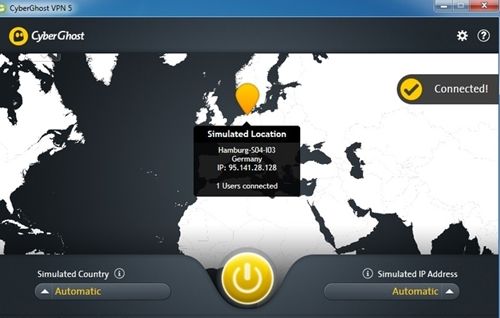
This is one of the best VPN that I ever tried on PC. Also you can see the positive rating of this tool. And using this you can access websites securely over the internet in your windows PC. Also its the best browser to surf anonymously over the web as it hides your main server identity.cyberghost vpn (SupremeWap.Com)

#2 Hotspot Shield Elite

You might be familiar with this VPN as this service is also available on android for free and on chrome as plugins. This is also a nice VPN that allow you to browse securely, you can also access any social networking and other sites that are blocked on your WiFi network.Hotspot Shield Elite (SupremeWap.Com)

#3 PD Proxy

Features of this awesome VPN are;
  • PD Proxy remove unblock content that is basically blocked by your ISP.
  • If you want free internet , Use PD-Proxy Software.
  • Secure your Internet or WiFi Connection , so no one can track you like ISP or hackers.
  • No one will know your real IP address , that is no one know your identity on internet.PD proxy (Supremewap.Com)

#4 TorVPN

This is one of the Affordable anonymous VPN proxy service provider helping you unblock content over the network.This VPN provides High speed, super fast encrypted connection on your Windows PC.TorVPN (SupremeWap.Com)

#5 OkayfreedomVPN

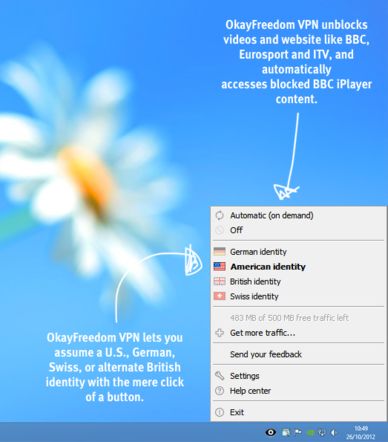
This is one the best free VPN that helps to access the websites securely in your windows PC, this VPN gives you the complete private network on your PC.OkayFreedom VPN (SupremeWap.Com)


Like us on Facebook and subscribe with your email to receive all our latest updates via your inbox!
Read More >>

Monday, October 5, 2015


Microsoft Windows 10 is the latest version of windows operating system. Microsoft is pushing it as “the last Windows” in the sense that there will be no more major updates like we've seen in the past. Instead, Microsoft will issue regular support patches. The system will look a lot more like the service packs they've sent out for past versions of Windows than major revisions. Because of this, it’s really important that you know about all the reasons you should be cautious of Windows 10.

It’s a great operating system that has been getting good reviews, and it shows that Microsoft is really invested in a quality product. For example, they are working with Hortonworks to create a Windows-compatible Hadoop BI release for big data analysis, and the security is built to frustrate advanced persistent threats. But before you upgrade, you need to understand there are still major problems with the system. That way you can decide if you want to jump in now or wait until Microsoft fixes or changes the problematic behavior. You might also decide to go for the upgrade now. In that case, we can explain why you might want to turn off some of Windows 10’s features.

Microsoft Windows 10 - Potential Issues

Support: Automatic Updates Cannot Be Stopped

First of all, let’s talk support. One of the constants for Microsoft has been that they tend to implement top-down solutions and force both developers and users to accept their decisions. Support is no exception to this rule.
Windows 10 brings a new feature by which all driver updates are now fully automatic and go through Microsoft. There are some upsides to this: no more hunting around on the web for exactly the right display driver to run a game. In theory this should force vendors to write good drivers. In practice, a bad display driver that made it through the update process has already caused problems by making some Windows 10 computers unusable! The automatic updater features makes it almost impossible to remove the driver. It’s also not clear what happens when there are multiple good drivers for one piece of hardware, as often happens with design and 3D modeling tools.
Microsoft seems pretty committed to this feature, so it might be a good idea to back off for a while until vendors can start putting out consistently good drivers. Otherwise, you might lose a lot of time if you get a bad driver pushed on you.

Privacy: Vague About Data Collection

Next, privacy. It’s a big issue these days, and Windows 10 is no exception. First of all, Windows 10 comes with a new privacy agreement that has broad language. You can read it yourself- Microsoft is pretty vague about the limitations they place on themselves as to what data they will collect and share.
One area of concern is Cortana. The virtual assistant tracks a lot of your usage habits across apps as well as your browsing history and location info. It’s all done to improve your experience, according to MS, but it is up to you to decide if you want to opt out.


Information: Automatic Sharing with Your Friends

Even aside from Cortana, Windows 10 does a lot to collect data from you and share it. It has a feature that automatically shares your wifi login information with your friends on Skype and Facebook that are in the range of your wifi. That makes it easy for them to connect if they visit, but you might not want that information out of your direct control. (Note that they never see the plaintext password- this is a computer-to-computer interaction). Still, though, you might want to turn it off if you have a wide social network.

Connection: Downloads May Decrease Your Speed

There’s another issue that might be a problem if you are on a metered connection. Windows 10 uses a torrent-like system to distribute updates, where users seed for each other. This is turned on by default, and if you have a bandwidth cap, you could eat up a lot of capacity without even realizing it because MS issued a download and is using some of your connection to share it with others.
Windows 10 has a lot going for it, but you really need to be aware of these issues before you make the switch. Think about whether you want to hold off or disable them. They might be deal breakers, but in any case you want to be informed beforehand.
Microsoft Windows 10 - Potential Issues
Read More >>

Thursday, September 24, 2015


Windows 10 Free Download Full Version ISO 32 Bit | 64 Bit and Windows 10 upgrade free. I always loved the moment when new OS release comes from Microsoft Windows 10. Users were expecting Windows 9 after the previous 8.1 but it was quite surprising that Microsoft Skipped 9 and released Windows 10. In this latest version of microsoft windows 10 has new look of Metro Style UI (User Interface) and Microsoft had to take a new step to create a Mixture of Windows 7 and Windows 8 to create the latest Windows 10.
Read More >>


Copyright © 2016 - SupremeWap - Tech Updates & Tutorials - All Rights Reserved
(Articles Cannot Be Reproduced Without Author Permission.)
Design By : | Powered By: SupremeTech Inc.