Latest: Add Latest Article Here | Recommended: Add Recommended Article Here
Subscribe For Free Latest Updates!

We'll not spam mate! We promise.

Showing posts with label iPhone. Show all posts

Thursday, November 5, 2015


Microsoft Launches Private Beta Version Of Cortana For iPhone (SupremeWap.Com)

Microsoft has launched ‘Hi Cortana’ for iOS devices, but will have limited features as compared to Windows Phone version

Read also: Microsoft Launches Beta Version Of Cortana On Android Devices

Microsoft today launched a private beta program for Cortana on iOS. It describes the Cortana app as a “companion to your Windows 10 PC” that extends Cortana’s functionality across to your mobile device, allowing you to use the digital assistant on the go.

After being tested intensively by company employees for six months, Microsoft wants to get more feedback on Cortana from those participating in the Windows Insider program before rolling it out to users in the store.

“In the spirit of the Windows Insider Program, we’re looking for a limited number of people to get their hands on an early version of the app. It’s important to keep in mind that this is the first public release of the Cortana for iOS beta,” the company said in an announcement on its Community forums.

“We want help from our Windows Insiders to make sure she’s a great personal assistant on iOS too,” says Microsoft, adding that it’s looking for a limited number of people who will get their hands on an early version of the Cortana for iPhone app.
The company is now taking sign ups for Cortana for iPhone and initially it will be only offered to those in the United States and China. In the coming months, the company promises to provide frequent updates to ensure that it significantly improves its performance before it is rolled out to the public.

As far as looks go, Cortana on Android isn’t all that different from the PC version. You can send emails, set reminders, schedule events, search the web, track flights and do the usual voice-powered searches Cortana has long been able to handle on other platforms.

However, you may not be able to just say “Hey Cortana” (Microsoft’s version of “OK Google”) to start the app for the time being, as Cortana doesn’t have full access to your Android phone. You also won’t be able to open apps from Cortana or toggle settings. All of these features are currently only available on Windows 10 PCs.

Those users who are interested in getting a chance to take Cortana for iPhone for a spin will first need to fill out a survey before being allowed to sign up. Microsoft says it will begin sending out download links over email “in the coming weeks” but that it will be starting with a limited number of testers.

While a public beta of Cortana for Android was launched in August, Microsoft has yet to reveal when it plans to release the Android and iOS versions out of beta.


Like us on Facebook and subscribe with your email to receive all our latest updates via your inbox!
Read More >>

Monday, November 2, 2015


Fake Apple iPhone 6S Are Now Produced In China For Just $37 (SupremeWap.Com)

When Apple launched iPhone 6s and iPhone 6s Plus in September this year, it led to Applemania with many of them wanting to be the proud owner of these highly-desirable handsets and China is no exception to this. Applemania has been sweeping China for the past one year. Due to the high cost of the phone, people have gone to the extremes in China by selling their kidneys to donating their sperms to lay their hands on these gadgets.

Clones had always been a popular business in China. So, in order to make these phones within the reach of their people, a Chinese company called “Fruit company” has come up with a copycat iPhone 6s at an affordable price of just $37 (Approximately N 7365 Nigerian Naira as the time of this post) as against the original iPhone model that started at $649 in the United States. In comparison to the original Apple iPhone 6s, the fake iPhone replica not only functions fairly well but it is also very difficult to tell apart from the actual one.

The iPhone 6s clone has similar features including a 5-inch qHD (960×540) display and comes in a range of colours like silver, gold and rose gold. The clone in question comes with a 5 inch qHD (960×540) display and a Spreadtrum quad core SC7731 ARM Cortex A7 SoC, 512MB RAM and 4GB of inbuilt storage.

CLICK HERE TO WATCH THE VIDEO

Specially tailored for Chinese customers, the copycat offers two SIM card slots and a 3G module. The alleged device comes with Android OS on board with an iOS theme skinned on top to ensure an ‘’iOS like” experience. Just three days after the launch, more than 13 million new iPhone 6s and iPhone 6s Plus replica models were sold setting a record.


Like us on Facebook and subscribe with your email to receive all our latest updates via your inbox!
Read More >>

Thursday, October 29, 2015


3D touch allow users to quickly access a lots of actions from the home screen of their smartphone, it makes user's experience more easy and friendly. But this feature is only available in iPhone 6 and 6S so users that are using the other versions of iPhone can't use this feature. But worry no more as in this post we going to discuss how users using other versions of iPhone can enable this feature on their phone. Also this trick works on all versions of iPhone.

How To Enable 3D Touch Feature On Your iPhone

This method will only work if you have admin access to your iPhone that is you have to jailbreak it before you can enable the 3D touch feature on your iPhone. And this will be done using cydia.

Steps To Enable 3D Touch Feature On Your iPhone:


1. You need to jailbreak your iPhone at first.

2. After jailbreak go to Cydia app of your iPhone and install Force Touch Activator app in it by searching this app there.

Force Torch Activator - Enable 3D Touch Feature On Your iPhone (SupremeWap.Com)

3. After installing the app, go to "Settings" and then select Activator menu.

4. Now select Force Touch Activator option.

5. Select any actions that you want to set for your 3D touch on your iPhone.

Force Torch Activator - Enable 3D Touch Feature On Your iPhone-2 (SupremeWap.Com)

6. That's it you are done adding 3D feature on your iPhone.


Like us on Facebook and subscribe with your email to receive all our latest updates via your inbox!
Read More >>

Saturday, October 24, 2015


The Coming In Future iPhone's Screens Are Going To Be Unbreakable (SupremeWap.Com)


An iPhone is a very expensive piece of hardware, not to mention one of the most delicate devices on the planet. A slight hit there and a small bump there will result in a screen crack that will definitely cost the user hundreds of dollars. However, things do not have to be that bad for future users because according to the latest patent from Apple, cracked screens will most likely be a thing of the past. How?
“A retractable bumper device that can be used to prevent damage to the glass phone screens. The bumpers are designed so that they are only extended when the phone is determined to be falling. The device includes the bumpers themselves along with the sensors needed to determine when a phone is free falling to the ground.”
The Coming In Future iPhone's Screens Are Going To Be Unbreakable (SupremeWap.Com)
According to the source, the new technology has been named active screen protection for electronic device in the patent paperwork and additional details state how bumpers and sensors will work together in order to protect the phone’s screen. Sensors will detect when the phone has been dropped. More patent details state that the technology included in the sensors will be GPS, acceleration sensors, a gyroscope and ultrasonic emitters. All of these will be working synergistically in order to determine the location, velocity and speed of the device, and that too, in real time.
The Coming In Future iPhone's Screens Are Going To Be Unbreakable (SupremeWap.Com)
This would end up triggering bumpers, and they will retract in order to prevent extensive damage to the iPhone. Despite the fact that the patent has been approved, Apple has not provided any sufficient details on its upcoming iPhone, but you can be certain that if so much technology is going to be present in the company’s upcoming mobile devices, including iPads, then they will definitely fetch a very high price.
source
Like us on Facebook and subscribe with your email to receive all our latest updates via your inbox!
Read More >>

Thursday, October 22, 2015


5 Best Browsers To Browse Safely And Securely On Your iPhone (SupremeWap.Com)

Recently we talked on how to browse safely, securely and anonymously on Android devices
In this cyber world security is always the first priority in any region. Similarly secure browsing is a way to browse safely or say anonymously over the internet. Mostly user thinks that they are safe over the internet for browsing lots of sites with their device. 
But that's a misunderstanding as today there are lots of spy agencies that keeps track on users, so its become necessary to ensure your privacy by securely browsing over the web. And in this article we are going to discuss how to browse safely, securely and anonymously on the internet for iPhone users.

Read also - 5 Best Browsers To Browse Safely And Securely On Your Android

How To Browse Safely, Securely And Anonymously On iPhone

Here we are going to tell you some of the best secure browser for iOS devices that are always in incognito mode and always keeps your data clear whenever you close it. And these will provide you the secure browsing experience in your iPhone. So have a look on these browsers.

5 Best Secure Browse For Your Android To Browse Securely


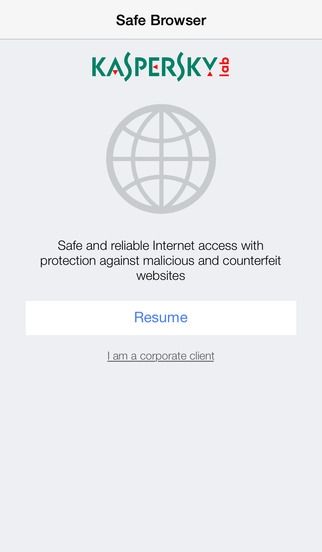
#1 Kaspersky Safe Browser: Fast & Free

This is one of the best browser that will allow you to browse securely with its high privacy browsing feature.Stay safe from malicious links, suspicious content or identity theft with Kaspersky Safe Browser for FREE. It detects & blocks phishing sites, spammy links & unwanted content.kaspersky safe browser fast & free (SupremeWap.Com)

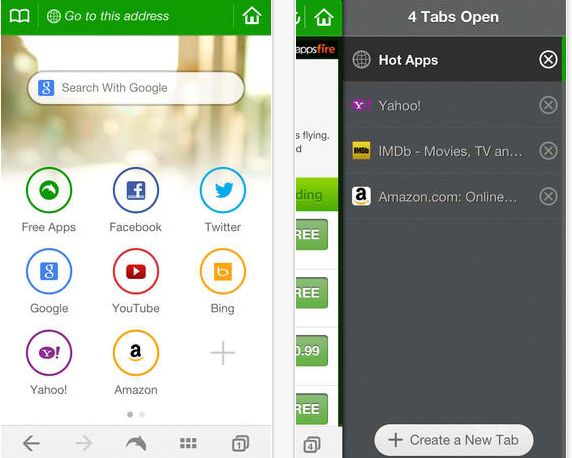
#2 Dolphin Web Browser

The another good browser that you will love to have in your iPhone. Dolphin is a free, fast, smart and personal web browser for iPhone and iPad. The exclusive features include one-tap share, tabbed browsing, cloud sync, gesture browsing, sonar search, speed dial, sidebar and a lot more to be discovered.dolphin web browser

#3 AirWatch Browser

AirWatch Browser provides a secure alternative to Safari Internet browsing for iOS devices. Your corporate IT administrator can customize and configure AirWatch Browser to meet your unique end-user needs. By allowing administrators to secure all Internet browsing and limit browsing to certain websites, AirWatch Browser gives you the benefits of mobile technology with fewer risks.airwatch browser (SupremeWap.Com)

#4 Webroot SecureWeb Browser

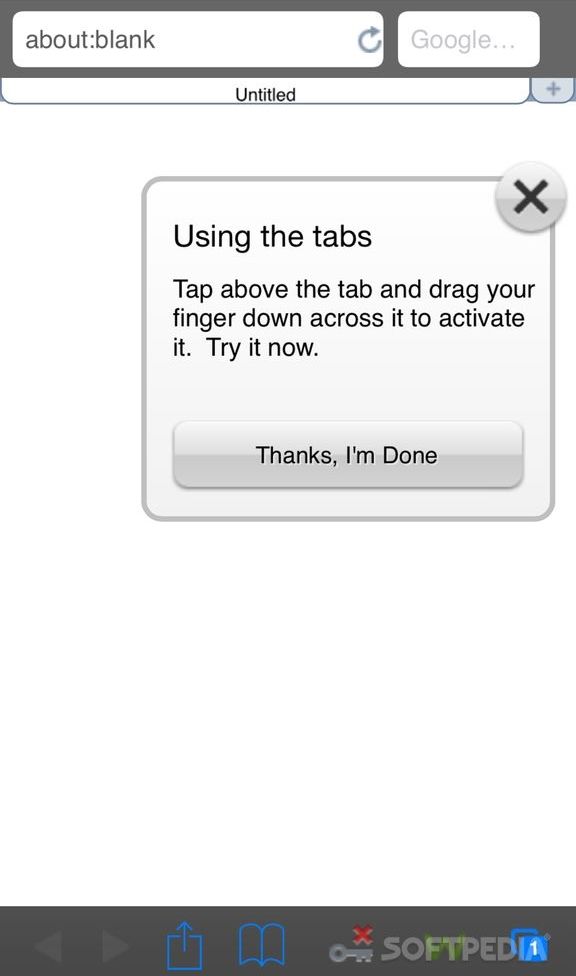
Webroot SecureWeb is the most advanced web browser for your iPhone, iPad, and iPod Touch. Shop and bank securely, block malicious sites, use tabs for faster browsing, and see which search results from Google, Yahoo!, Bing, and Ask are the safest to explore.webroot secureweb browser (SupremeWap.Com)

#5 Symantec Secure Web

Symantec Secure Web allows you to securely access your company’s internal websites and content from your iOS devices. Together with Symantec App Center, Mobile IT administrators can customize policies to meet unique security and business needs of the organization.
symantec secure web (SupremeWap.Com)


Like us on Facebook and subscribe with your email to receive all our latest updates via your inbox!
Read More >>

Wednesday, October 7, 2015


How-To-Check-Devices-Connected-To-Your-Wifi-Using-Smartphone(SupremeWap.Com)

WiFi is now being used by lots of people and almost every one is having their personal WiFi networks. But sometimes other people know your password and can use your WiFi network. And with that your bandwidth get divided and your network speed gets slow. So to overcome this we have a cool tip that will help you to check out all the device that being currently connected to your WiFi network with the help of your smartphone (Android/iPhone).

How To Check Devices That Are Connected To Your WiFi Using Your Android/iPhone


#1 Checking Devices Connected To Your WiFi Network On Android

1. On your android phone download and install the app called Fing – Network Tools For Android .

2. After installing, launch the app.

3. Now simply scan all the device that being currently connected on the same WiFi network.


4. Now list of devices will get appear that being currently using the same WiFi network.


5. Now you can check the Mac address of device and can block it on your router.


#2 Checking Devices Connected To Your WiFi Network On iPhone

1. On your iPhone device download and install the app called Fing – Network Tools For iOS.

2. After installing the app launch it as well.

3. Now simply scan all the device that being currently connected on the same WiFi network.


4. Now list of devices will get appear that being currently using the same WiFi network.

5. Now you can check the Mac address of device and can block it on your router also.


With the above methods you can easily trace out the list of devices that being currently connected to your WiFi network and block them if you wish.
Read More >>


Restore Deleted Text Messages (SupremeWap.Com)

iOS is one of the most popular operating system in the world of smartphone. Now while restoring or formatting your iPhone your text messages got deleted. And sometimes you loss some critical information that you stored in your text messages. So here are the methods by which you can recover your deleted messages on your iPhone.

Methods To Restore Deleted Text Messages On iPhone

#1 Method: Recover Deleted Text Messages On iPhone Using Recovery Tool
Here we are recommending you a tool that will allow you to preview your deleted contacts and recover them back in your PC.
Windows OS : Drfone for iOS
Mac OS : Drfone for iOS
Use this tool on your respective OS(Windows or Mac) and scan out all your lost messages and recover deleted messages from it.
define for iOS (SupremeWap.Com)

#2 Method: Restore iPhone Completely To Get Back Your Deleted Messages
1. First of all go to Settings menu and select General and from there, choose Reset and Erase All Content and Settings.
2. Now after erasing your iPhone, the device should prompt you to either set it up as a new phone or to restore it from a previous backup data. At this screen, select “ Restore from iCloud Backup” . Note that this will work only if you have backup your iPhone from iCloud earlier.


3. Now fill up your apple id and password from your phone and allow the content to download on your phone with the recent date to restore. And the downloading process will get completed.


4. That's it you are done with
restoring all the data of your iPhone to its previous state.

#3 Method: Recover Deleted Text Messages On iPhone Using iCloud
1. First of all go to address https://icloud.com and there login with your Apple ID and password.

2. Now there click on the Text Messages option there (This option will only be there if your iPhone is sync with your iCloud account.)

3. Now search the message there that you want to recover out.

4. Now in your iPhone go to Settings -> iCloud .

5. Now there Turn Off the message option.

6. Now there a pop-up will appear and in it select “ Keep on My iPhone “.

7. Now get back to the Text Messaging app.

8. There click on “ Merge” option and wait for a while.

9. That's it you are done, now your deleted messages will be there in the app.

With those methods above, you can easily recover up all your lost text messages from your iPhone.

Subscribe to this blog below and receive all our updates via email
Read More >>

Friday, September 25, 2015


China Just Has Created a Copy Of The iPhone 6s For $ 91

In Shenzhen went on sale a smartphone, which is a full copy of iPhone 6s, which costs $ 91, Like the iPhone 6s, the unit has a 4.7-inch screen, and the size and appearance are the same smartphone from Apple. At the same time he works on Android OS pre-installed launcher for greater similarity to iOS.
Inside a fake set ARM Cortex processor with a frequency of 1.5 GHz, 1 GB of RAM and 4 GB of storage. Resolution main camera is 13 megapixel smartphone, the front – 2 MP. Battery capacity at the same time up to 2000 mAh. Should the device is 10 times cheaper than the original, namely 580 yuan, or $ 91 (about 6 thousand. Rub.).

China Just Has Created a Copy Of The iPhone 6s For $ 91


The Apple iPhone 6s and 6s Plus are because of hit shops on 25 September, yet fakes are now on special away from public scrutiny in southern China.
The shops inside a clamoring innovation shopping center in the southern Shenzhen city don’t transparently show fake iPhones at their counters, however will go and bring them from somewhere down in their stock.
Evaluated at CN¥580 (£59, $91), a value’s tenth of a genuine telephone, the gold-shaded fake seems true, finish with the letter “S” engraved on the back.
Read More >>

Thursday, September 24, 2015


Windows 10 Free Download Full Version ISO 32 Bit | 64 Bit and Windows 10 upgrade free. I always loved the moment when new OS release comes from Microsoft Windows 10. Users were expecting Windows 9 after the previous 8.1 but it was quite surprising that Microsoft Skipped 9 and released Windows 10. In this latest version of microsoft windows 10 has new look of Metro Style UI (User Interface) and Microsoft had to take a new step to create a Mixture of Windows 7 and Windows 8 to create the latest Windows 10.
Read More >>


Copyright © 2016 - SupremeWap - Tech Updates & Tutorials - All Rights Reserved
(Articles Cannot Be Reproduced Without Author Permission.)
Design By : | Powered By: SupremeTech Inc.