Latest: Add Latest Article Here | Recommended: Add Recommended Article Here
Subscribe For Free Latest Updates!

We'll not spam mate! We promise.

Showing posts with label Security Tips. Show all posts

Wednesday, November 11, 2015


Ever since Windows 10 was introduced by Microsoft, it has been notorious for spying on the users. It is installed with Express Settings that can track a very large amount of data. Windows 10 Home can track and share the websites you visit, your purchases, the searches you make, contacts, calendar details, location and the voice commands you use with virtual assistant, Cortana.

According to Microsoft, your personal information is sent back to its servers as it is rarely recorded and there is always an opt-out, whenever it does. However, those who are uncomfortable with the operating system’s exceptional thirst for data can rest.

A new third-party app assures to stop all of the background data collection in Windows 10, including the features that Microsoft does not let users to disable from within the settings.

Spybot Anti-Beacon , this one-click solution slows down the process on your operating system’s telemetry data.

The Spybot Anti-Beacon tool, that operates independently has now be updated so that it can work across Windows 7, Windows 8.1 and Windows 10.

Spybot, who have been in the privacy business since 2000 offers Anti-Beacon that is small, easy to use and free of charge. Windows 10 users who do not wish to have details about their PC usage sent to Microsoft, this lightweight app was built to address the privacy concerns of such users.

All you need to do is to just tap “Immunise” on the main screen of the app to disable any known tracking features included by Microsoft in the operating system.

While using Anti-Beacon if any there problems that occur with your PC , undoing the changes made can be done by clicking the “undo” button in the main window. Although, this will re-enable all tracking services.

Windows 10 – which is currently being installed on thousands of computers automatically in the latest adoption push by Microsoft – is continually being updated and tweaked by Microsoft.

Threshold 2, which is the latest update is scheduled to roll out later this month. It includes twists to the failed Microsoft Edge browser, several patches, and some visual changes.

In a move to appeal to businesses to choose the new unified Windows operating system, Microsoft recently relaxed its stance on data collection for enterprise customers. The ability to turn off telemetry tracking was recently gained by Windows 10 Enterprise, even though Microsoft strangle suggests you to leave it on.

Speaking to PC World, Vice President Joe Belfiore said “We’re going to continue to listen to what the broad public says about these decisions. Ultimately our goal is to balance the right thing happening for the most people – really, for everyone – with complexity that comes with putting in a whole lot of control.”

He added: “And in the case of knowing that our system that we’ve created is crashing, or is having serious performance problems, we view that as so helpful to the ecosystem, and so not an issue of personal privacy, that today, we collect that data so that we make that experience better for everyone.”

In the name of convenience, Windows 10 takes a lot of decisions out of the hands of its users.

The next-generation functionality included in new operating system is whether or not worth the trade-off, could finally decide whether or not you opt for the free upgrade.
Microsoft does let you to control some of its data collection policies by navigating to Start > Settings > Privacy, even if you can’t disable all of the telemetry data in the consumer editions.

Following the upgrade to Windows 10, users have reported annoyingly slow boot-up speeds, privacy concerns, trouble with WiFi connections and problems with child safety features.

Currently, Windows 10 is a free operating system upgrade to customers running original versions of Windows 7/8/8.1.


source
Like us on Facebook and subscribe with your email to receive all our latest updates via your inbox!
Read More >>

Friday, November 6, 2015


Meet OmniRAT, A $25 Tool To Hack Into Windows, OS X And Android Devices (SupremeWap.Com)

OmniRAT is a “Remote Administration Tool” which can hack into Windows, OS X and Android run devices and it cost only 25 dollars

OmniRAT is a software that lets you hack into computers running on Windows and Mac OS X in addition to hacking Android smartphones and tablets. OmniRAT can can spy on communications, secretly record conversations, snoop on browsing histories and take complete control of a remote device. And its cheap. OmniRAT is available on the dark web underground forums for $25 compared to another notorious malware, DroidJack which is sold for $210.

Security researcher Nikolaos Chrysaidos from anti-virus maker Avast who discovered the OmniRAT and calls it a “Remote Administration Tool”. In his blog post, Chrysaidos describes how he believes hackers have infected Androids with OmniRAT after sending an SMS. Chrysaidos says that OmniRAT can also be used for legitimate purposes, with the permission and consent of the owners of Android, Mac and Windows computers it tries to control. But in the hands of a cyber criminal it becomes a “Remote Access Trojan” – giving the malicious hackers an opportunity to sneakily spy on and steal from unsuspecting users duped into installing the code.

Meet OmniRAT, A $25 Tool To Hack Into Windows, OS X And Android Devices-2 (SupremeWap.Com)

The OmniRAT spreads through phishing which takes the victim to a website laden with the installation file of OmniRAT. A German Android user explained on the Techboard forum on how he was lured into a website with OmniRAT. He said that had received an SMS telling him that an MMS had not been delivered directly to him due to the StageFright vulnerability. In order to access the MMS, he was told to follow a bit.ly link within three days, and enter a PIN code.

However, as Crysaidos explains, visiting the URL would initiate the attempt to install OmniRAT onto the target’s Android device:

Once you enter your number and code, an APK, mms-einst8923, is downloaded onto the Android device. The mms-einst8923.apk, once installed, loads a message onto the phone saying that the MMS settings have been successfully modified and loads an icon, labeled “MMS Retrieve” onto the phone.

Once the icon is opened by the victim, mms-einst8923.apk extracts OmniRat, which is encoded within the mms-einst8923.apk. In the example described on Techboard-online, a customized version of OmniRat is extracted.

Meet OmniRAT, A $25 Tool To Hack Into Windows, OS X And Android Devices-3 (SupremeWap.Com)

The APK than demands the Android user to accept a long list of permissions which should trigger suspicions among tech savvy users.

Meet OmniRAT, A $25 Tool To Hack Into Windows, OS X And Android Devices-4 (SupremeWap.Com)

Once installed, the App will send its own SMS message to the victims friends and colleagues listed in the contact list and further spread itself. The OmniRAT cannot be uninstalled once it is installed on the Android smartphones. Chrysaidos says that even if the victim uninstalls the MMS Retrieve icon, the customised version of OmniRAT remains installed on his/her Android smartphone, and will be sending data to a command and control (C&C) server seemingly based in Russia.

Chrysaidos says that Android users should undertake following steps to protect themselves from OmniRAT:

1. Make sure you have an antivirus solution installed on your smartphone to detect malware, like OmniRat. Avast detects OmniRat as Android:OmniRat-A [Trj].

2. Do not open any links from untrusted sources. If an unknown number or email address sends you a link, do not open the link.

3. Do not download apps from unknown sources to your mobile device. Only download apps from trusted sources such as the Google Play Store or the Apple App Store.


Like us on Facebook and subscribe with your email to receive all our latest updates via your inbox!
Read More >>

Saturday, October 24, 2015


How To Protect Your External Hard Disk Drive With Password (SupremeWap.Com)


Security is always the first priority for every user and when it comes to personal data then it become more important. An External hard drive(HDD) is where you store a lots of data (either personal or public) that you might not want to store in your computer because of storage issue or whatsoever issue. Anyone can have access to your hard disk that is your data is not secure. So this topic is about how to password-protect your hard disk drive so that anyone wont have access to it but only you.

How To Password-Protect Your External Hard Disk Drive

There are two methods to be discussed in this post, the first is base on system settings that will allow you to lock your drive with password without the need of third party tool that is we are going to use the inbuilt feature in windows and the second is with a third party tool.

Steps To Secure Your External Hard Drive With BitLocker:

  1. Connect your external hard drive to your PC.
  2. Now click on Start button and then navigate to Control Panel -> Security -> Bitlocker.Encrypt Drive (SupremeWap.Com)
  3. Open the program and then click on Turn On BitLocker which is just next to your external hard drive.Encrypt Drive2 (SupremeWap.Com)
  4. Tick on “Use a Password to Unlock the Drive” option there and then enter same password you wish to use in both fields and then click on “Next“.Encrypt Drive3 (SupremeWap.Com)
  5. To save your key (in case you forgot it) click on “Save the Recovery Key to a File,” and select any location where you want to save your key for future reference.
  6. Click on save option and the proceed by clicking on next button.
  7. Click on Start Encryption option and wait for the process to complete and it can take a time to complete depending upon drive size.
  8. Now your drive will always ask for password whenever you want to access file inside it.

Steps To Password Protect Your External Drive With StorageCrypt

  1. Download and install a software called StorageCrypt.
  2. Launch the tool and connect your drive with PC.
  3. Select the device you want to encrypt with password.
  4. Select quick mode and then protect your drive with your desired password.Encrypt Drive4
  5. Now the encryption process will start and your drive will now be secured with your password.


Like us on Facebook and subscribe with your email to receive all our latest updates via your inbox!
Read More >>

Thursday, October 22, 2015


5 Best Browsers To Browse Safely And Securely On Your iPhone (SupremeWap.Com)

Recently we talked on how to browse safely, securely and anonymously on Android devices
In this cyber world security is always the first priority in any region. Similarly secure browsing is a way to browse safely or say anonymously over the internet. Mostly user thinks that they are safe over the internet for browsing lots of sites with their device. 
But that's a misunderstanding as today there are lots of spy agencies that keeps track on users, so its become necessary to ensure your privacy by securely browsing over the web. And in this article we are going to discuss how to browse safely, securely and anonymously on the internet for iPhone users.

Read also - 5 Best Browsers To Browse Safely And Securely On Your Android

How To Browse Safely, Securely And Anonymously On iPhone

Here we are going to tell you some of the best secure browser for iOS devices that are always in incognito mode and always keeps your data clear whenever you close it. And these will provide you the secure browsing experience in your iPhone. So have a look on these browsers.

5 Best Secure Browse For Your Android To Browse Securely


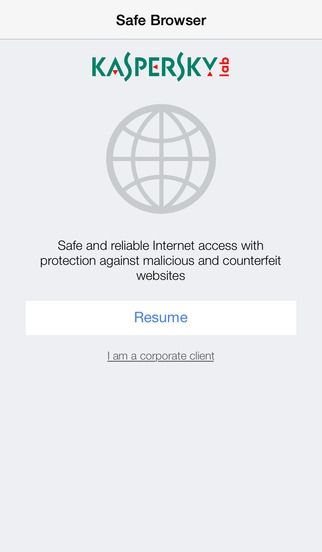
#1 Kaspersky Safe Browser: Fast & Free

This is one of the best browser that will allow you to browse securely with its high privacy browsing feature.Stay safe from malicious links, suspicious content or identity theft with Kaspersky Safe Browser for FREE. It detects & blocks phishing sites, spammy links & unwanted content.kaspersky safe browser fast & free (SupremeWap.Com)

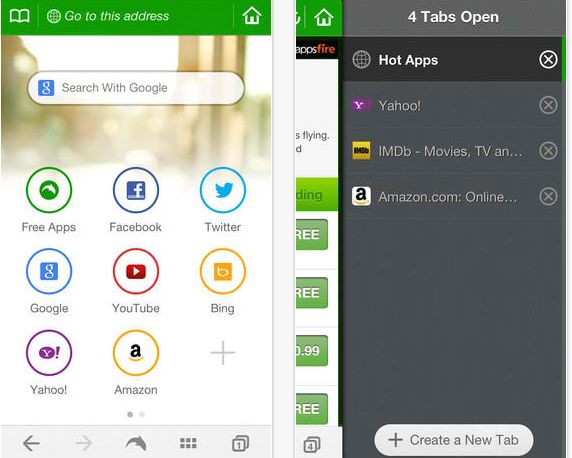
#2 Dolphin Web Browser

The another good browser that you will love to have in your iPhone. Dolphin is a free, fast, smart and personal web browser for iPhone and iPad. The exclusive features include one-tap share, tabbed browsing, cloud sync, gesture browsing, sonar search, speed dial, sidebar and a lot more to be discovered.dolphin web browser

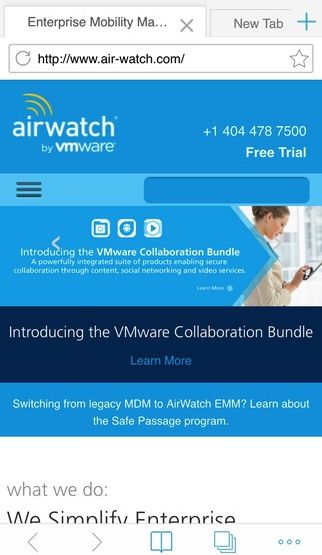
#3 AirWatch Browser

AirWatch Browser provides a secure alternative to Safari Internet browsing for iOS devices. Your corporate IT administrator can customize and configure AirWatch Browser to meet your unique end-user needs. By allowing administrators to secure all Internet browsing and limit browsing to certain websites, AirWatch Browser gives you the benefits of mobile technology with fewer risks.airwatch browser (SupremeWap.Com)

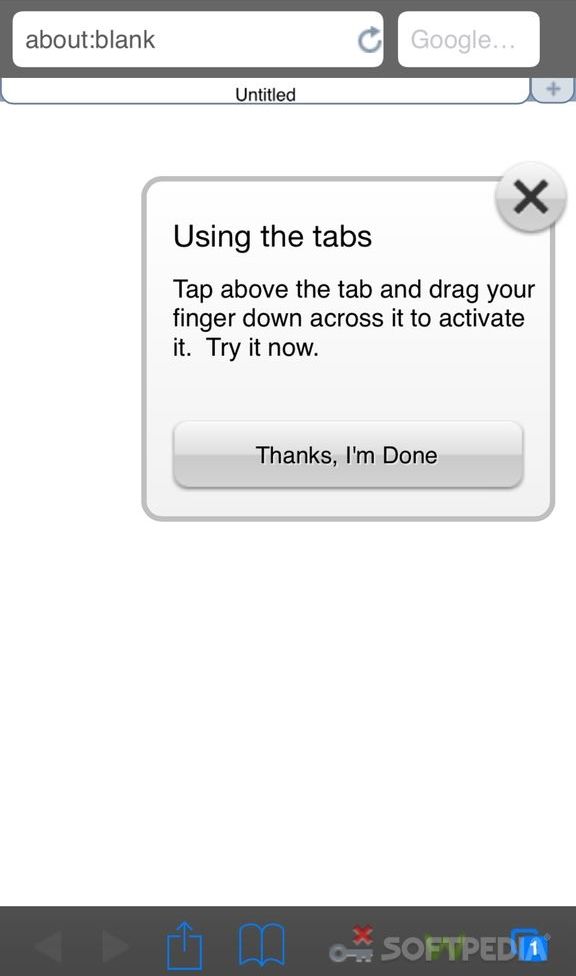
#4 Webroot SecureWeb Browser

Webroot SecureWeb is the most advanced web browser for your iPhone, iPad, and iPod Touch. Shop and bank securely, block malicious sites, use tabs for faster browsing, and see which search results from Google, Yahoo!, Bing, and Ask are the safest to explore.webroot secureweb browser (SupremeWap.Com)

#5 Symantec Secure Web

Symantec Secure Web allows you to securely access your company’s internal websites and content from your iOS devices. Together with Symantec App Center, Mobile IT administrators can customize policies to meet unique security and business needs of the organization.
symantec secure web (SupremeWap.Com)


Like us on Facebook and subscribe with your email to receive all our latest updates via your inbox!
Read More >>

Tuesday, October 20, 2015


5 Best Browsers Browse Safely And Securely On Your Android (SupremeWap.Com)

In this cyber world security is always the first priority in any region. Similarly secure browsing is a way to browse safely or say anonymously over the internet. Mostly user thinks that they are safe over the internet for browsing lots of sites with their device. 
But that's a misunderstanding as today there are lots of spy agencies that keeps track on users, so its become necessary to ensure your privacy by securely browsing over the web. And in this article we are going to discuss how to browse safely, securely and anonymously on the internet for android users. 

How To Browse Safely, Securely And Anonymously On Android

Here we are going to tell you some of the best secure browser for android that are always in incognito mode and always keeps your data clear whenever you close it. And these will provide you the secure browsing experience in your android. So have a look on these browsers.

5 Best Secure Browse For Your Android To Browse Securely

#1 Ghostery Browser

This is one the best browser that every security alert user knows. This popular browser provides you the private browsing by default. And the major part is that when you close it app erases all data, such as browsing history, downloaded files, forms, cookies, and entered passwords. Also this app provide you the fast page access from the websites.ghostery android browser (SupremeWap.Com)

#2 Dolphin Zero

Many of you must be familiar with this cool android browser as this browser provides you the high privacy while browsing over the web. Similarly like above browser, this browser also clears all the data like cookies, form data, passwords and all other cache files. So must give a try to this cool browser.dolphin-zero-android (SupremeWap.Com)

#3 Krypton Web Browser

One of the best and my favorite browser is this as this browser is just better than all other browser. This browser works on HTTPS everywhere policy and that provides the high security while browsing and also its tabs are isolated from each other from one’e data to another that stops data trapping from other sites. Must use this browser atleast once.krypton web browser (SupremeWap.Com)

#4 Javelin Incognito Browser

The another popular browser that must be well known by the students as this browser provides you the proxy to bypass the blocked sites over the wifi. Also this brosers block ads on it and private browsing in it.javelin incognito browser (SupremeWap.Com)

#5 CM Browser – Fast & Secure

CM is well know to android user a group that had develop lots of cool apps, similarly their browser is also good and provides you the secure access over the internet and stops scripts that can track you over the web.cm browser - fast & secure (SupremeWap.Com)
Apart from browser you can use some Best VPN For Android that gives you a secure private network to browse anonymously over the internet.

Read More >>

Saturday, October 17, 2015


Tips To Protect Your Smartphone From Being Hacked (SupremeWap.Com)

As cybersecurity threats continue to increase, it’s possible that your device could be affected with a virus or malware that could give hackers access to your personal or private information, AT&T said.

Tips To Protect Your Smartphone From Being Hacked


To help keep your device secure,
AT&T has put together these useful 6 tips:

1. It’s important to keep your device software up to date. The latest software updates include the best available protections to help defend against these viruses.

2.Regularly back up your data and device to avoid any information loss.

3.Download apps only from trustworthy sources. Using alternatives to your device’s pre-loaded application store can increase the risk of downloading an application that includes a virus.

4. To avoid having your personal, financial, or medical information compromised, use multiple layers of authentication (passwords, icons, usernames, and security questions) to protect transactions and avoid anyone accessing your account.

5. Keep your passwords private, and use more complex passwords to avoid others easily guessing. Finally and most important, watch your statements closely and report suspicious activity immediately.

6. To help stay safe online, keep security in mind when using your device and think twice before opening an email or a link that you’re not familiar with. Enticing links to viruses and destructive software (called malware) can be transmitted through text messaging from unknown numbers.


http://facebook.com/SupremeWap
source
Read More >>


Copyright © 2016 - SupremeWap - Tech Updates & Tutorials - All Rights Reserved
(Articles Cannot Be Reproduced Without Author Permission.)
Design By : | Powered By: SupremeTech Inc.